![VEXCEL_Data_Program_Brand_outline_Logo_Horizontal_Black.jpg]](https://support1.vexceldata.com/hs-fs/hubfs/Logos/VEXCEL_Data_Program_Brand_outline_Logo_Horizontal_Black.jpg?height=40&name=VEXCEL_Data_Program_Brand_outline_Logo_Horizontal_Black.jpg)
Accessing Vexcel Imagery in QGIS
Creating an XYZ Imagery Layer:
1. Generate an Authentication Token:
Each user who will access Vexcel Imagery Services will need to generate a unique authentication token. Once you have been provided Vexcel Platform credentials, you can generate a token by logging in to the Vexcel API found at https://api.vexcelgroup.com/. Refer to the Vexcel API Documentation: Authentication Token Services for more information.
2. Create your XYZ Layer with Token
After generating your authentication token, you can use the following base URL, entering the Elements Roadway dataset (layer, AOI and childAOI) values and your unique token value. https://api.vexcelgroup.com/images/GetOrthoImageTile/{layer}/{z}/{x}/{y}?aoi={aoi}&childAOI={childAOI}&token={token}
URL Example:
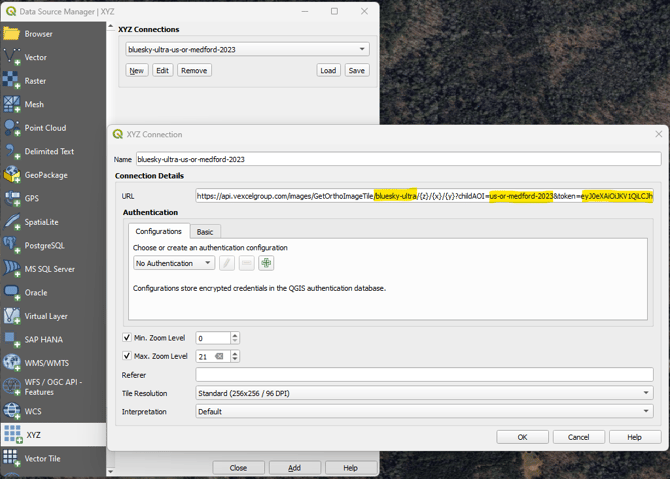
Unique URL parameter values required for each user and Roadway Elements dataset are highlighted in blue below:
https://api.vexcelgroup.com/images/GetOrthoImageTile/bluesky-ultra/{z}/{x}/{y}?aoi=us-or-medford-2023&childAOI=us-or-medford-2023&token=[your_token_here]
To access Vexcel Imagery in QGIS:
-
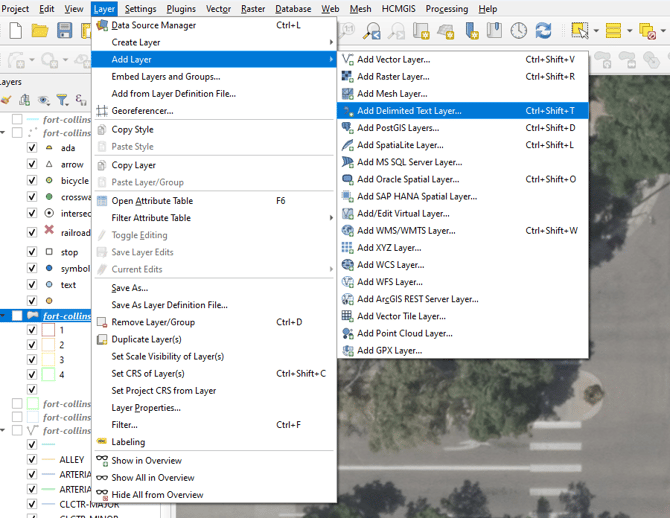
Select Layer>Add Layer>Add XYZ Layer.
-
In the Data Source Manager | XYZ dialog box, enter the OrthoImageTile service URL and values specific to the elements roadway data (
layer,AOIandchildAOI) found in the elements.csv file and your uniquetokenvalue. -
Set the Max Zoom Level to 21 and click OK.
For more details about Vector Tile use in QGIS, refer to the QGIS Vector Tile Documentation.
Displaying Elements Roadway Data in QGIS
You can display the detected roadway elements as points using the long and lat fields, as polygons using the bbox_wkt field, and lines using the crossing_wkt field (crosswalks only).
1. Load the elements.csv file. Using QGIS, select Layer>Add Layer>Add Delimited Text Layer
2. Browse to the elements-roadway.csv file. Under Geometry Definition, select how you would like to display the roadway elements. There are three options:
A: Bounding Box centroids: Point coordinates using the long and lat fields.
B: Bounding Boxes: Well known text (WKT) using the bbox_wkt field.
C: Crossing vectors: Well known text (WKT) using the crossing_wkt field.
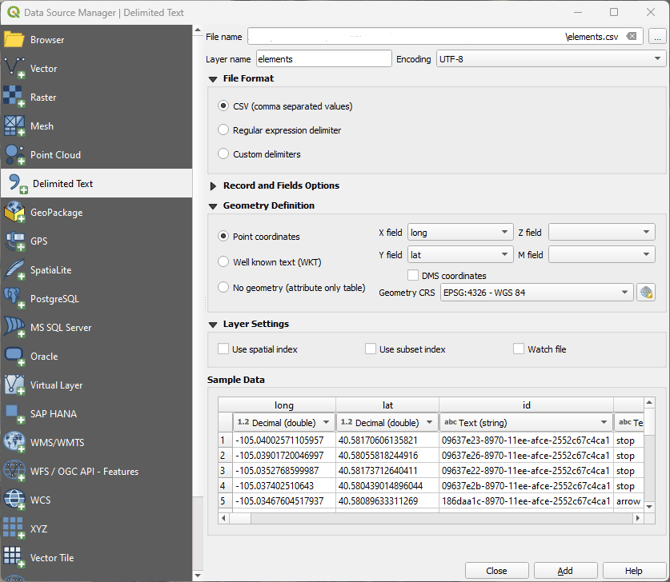
 A: Settings to display Bounding Box centroids.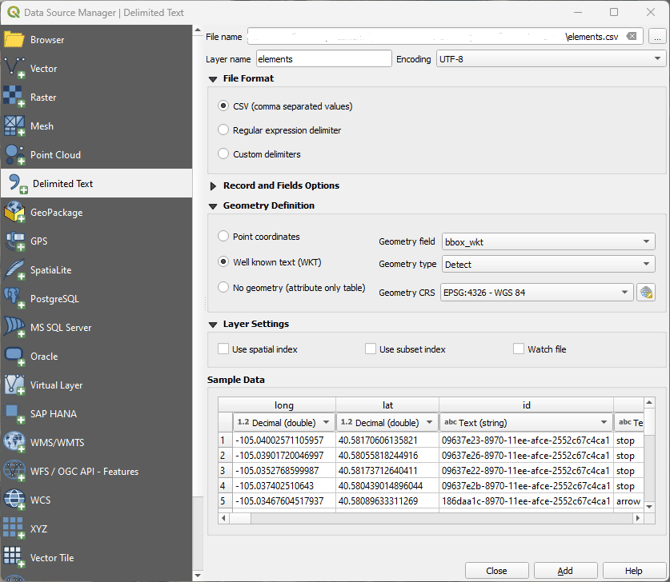
 B: Settings to display Bounding Boxes.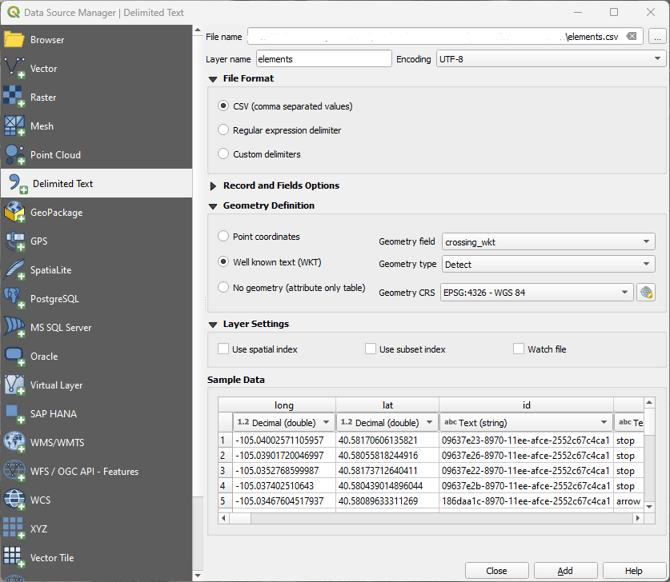
 C: Settings to display crosswalk crossing vectors.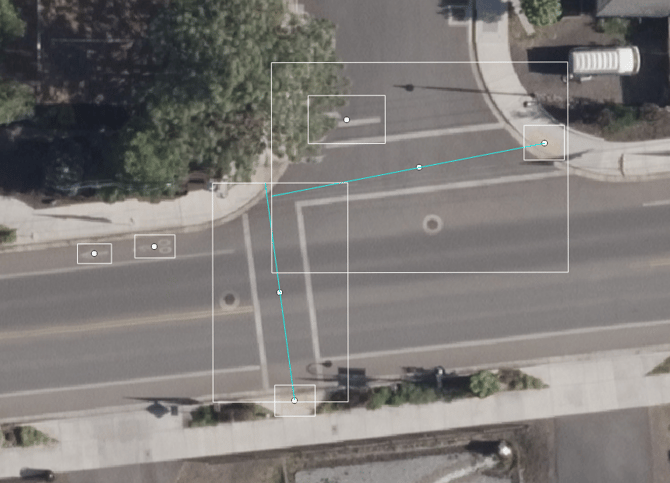
 Vexcel Elements Roadway data displayed in QGIS.