![VEXCEL_Data_Program_Brand_outline_Logo_Horizontal_Black.jpg]](https://support1.vexceldata.com/hs-fs/hubfs/Logos/VEXCEL_Data_Program_Brand_outline_Logo_Horizontal_Black.jpg?height=40&name=VEXCEL_Data_Program_Brand_outline_Logo_Horizontal_Black.jpg)
Supported Browsers
Viewer Access
Access via Federated Authentication
Traditional Account (Username and Password)
Setting Up Your Traditional Account
Logging In (Traditional Accounts)
Resetting Your Password (Traditional Accounts)
Viewer Tools Overview
Supported Browsers
The Viewer is supported in Chrome, the new Microsoft Edge, and Firefox.
Internet Explorer is not supported. Performance is not guaranteed in any other browser.
Viewer Access
The Viewer can be accessed here: Vexcel Viewer
Access via Federated Authentication
Vexcel’s federated authentication capability allows users to easily access the Viewer through
their own corporate credentials instead of having to remember another username and
password. For this to work, your company must be set up to use federated authentication with
the Viewer.
If your company has been set up for federated authentication in the Viewer, you will
automatically be routed through the federated auth login flow when attempting to access the
Viewer. There is no special action required on your part.
If your company is not set up to use federated authentication, you will need to provide a
traditional username and password to access the Viewer.
If your company would like to be set up to use federated authentication, the setup process is
easy. Contact support@vexcelgroup.com to begin the process.
Traditional Account (Username and Password)
If your company is not set up to use federated authentication, you will need to provide a
traditional username and password to access the Viewer. These accounts must be initiated by
Vexcel and the setup must be completed by you, the account owner.
Setting Up Your Traditional Account
When your traditional Viewer account is initiated, you will receive an email welcoming you and
directing you to complete the setup of your account. Click Activate Account in your welcome
email and follow the directions. You will be prompted to enter your name and create a password.
Passwords must:
- Have at least 8 characters and no more than 24 characters
- Have at least one uppercase letter, one lowercase letter, and one number
- Have at least one special character: ! @ # $ % ^ & *
- Not contain any white spaces (the character created by using the spacebar)
Warning: The use of special characters apart from the approved list ( ! @ # $ %
^ & * ) may cause problems when requesting API authentication tokens.
Logging In (Traditional Accounts)
In your browser, navigate to Vexcel Viewer.
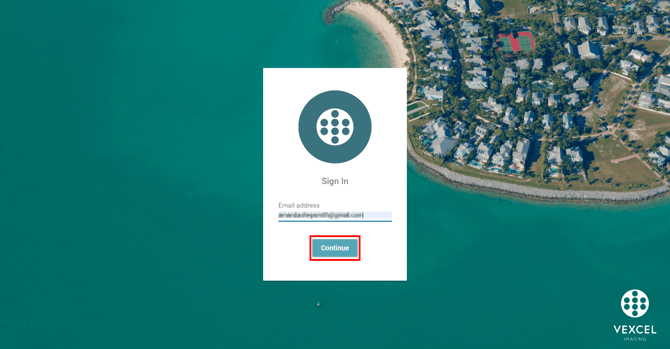
Enter your email address, then click Continue.
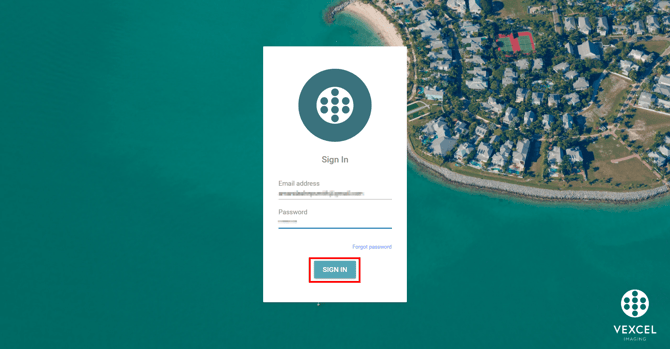
Enter your password, then click Sign In.
Warning: If you forget your password, 5 unsuccessful attempts to log in to your account
will result in your account being locked for 5 minutes, for security reasons.
Resetting Your Password (Traditional Accounts)
To reset your password, navigate to Vexcel Viewer in your browser, enter
your email address, then click Continue.
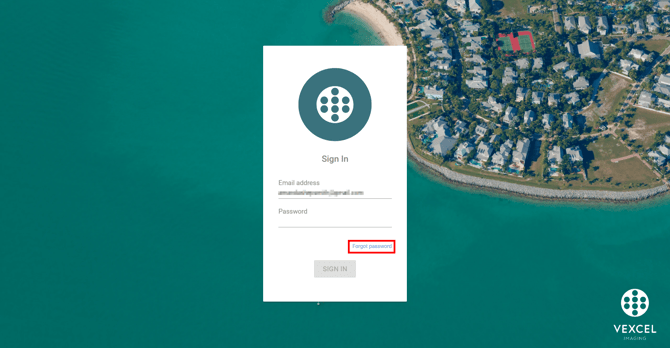
Instead of entering your password, click Forgot password.
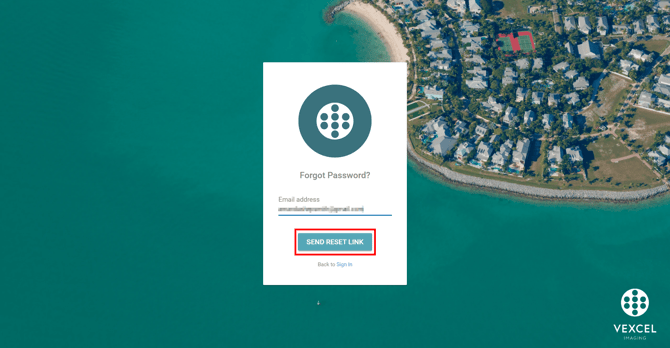
On the next screen, confirm the email address associated with your account, then click Send
reset link.
An email with instructions for creating a new password will be sent to the email you entered. If
you don’t receive your password reset email, check your spam or junk folder. Follow the
directions in this email to access your account.
Viewer Tools Overview
Once you log in, you will be greeted with the Viewer. The exact appearance of the Viewer, as
well as the availability of data, features, and other components may vary depending on your service
agreement.
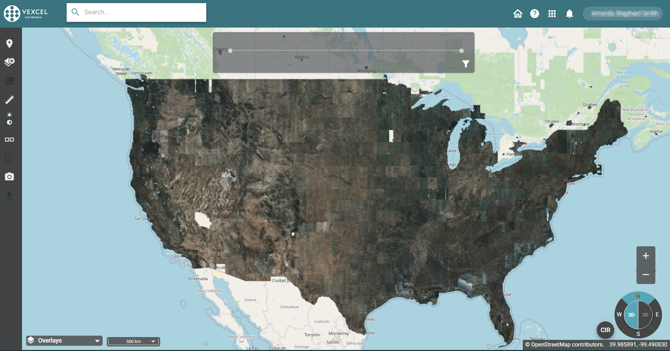
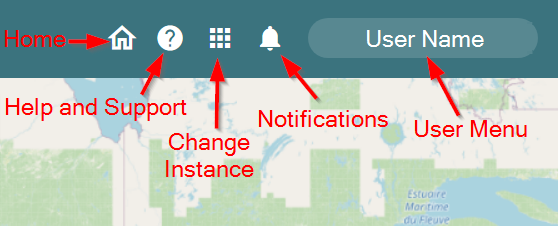
In the upper-right corner of the top banner there is a user menu with several options.
- User menu: In the user menu, you can log out or change your password. Note that if you are using the Viewer via federated authentication access, you will not have an option to reset your password.
- Notifications: The notification icon allows you to easily see when new Gray Sky imagery is
published in areas you have access to. For additional documentation regarding this feature,
please refer to the Notifications section. - Change instance button: The grid icon allows you to change your instance, if you have more
than one available. This option will not show if you don’t have access to multiple instances. - Help and support menu: The “?” icon is a help center where you can give feedback, find
assistance, and access helpful articles. - Home button: The home button will reset the Viewer to your default view - either an overview of your imagery access, or, if you have full worldwide access, it will show an overview of the earth.
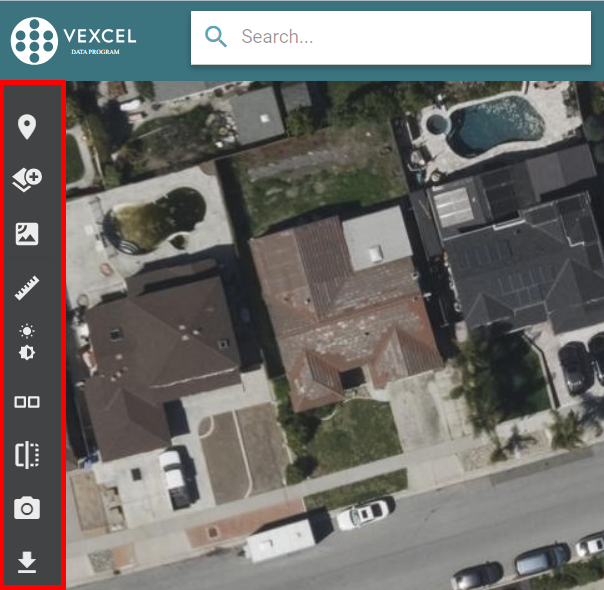
The Viewer’s main toolbar is located on the left side of the window. When you select one of the
icons there, that tool opens. Clicking the icon again closes the tool.
You can pan around the map by holding the left mouse button on the map and dragging the
mouse around the screen. To zoom in or out, use the scroll wheel on your mouse, or the +/-
buttons in the lower right corner of the map.
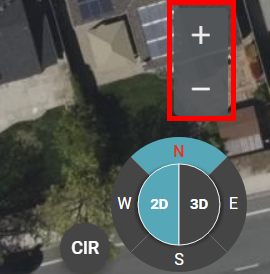
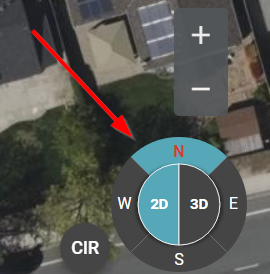
The compass control allows you to change the orientation and direction of your imagery.
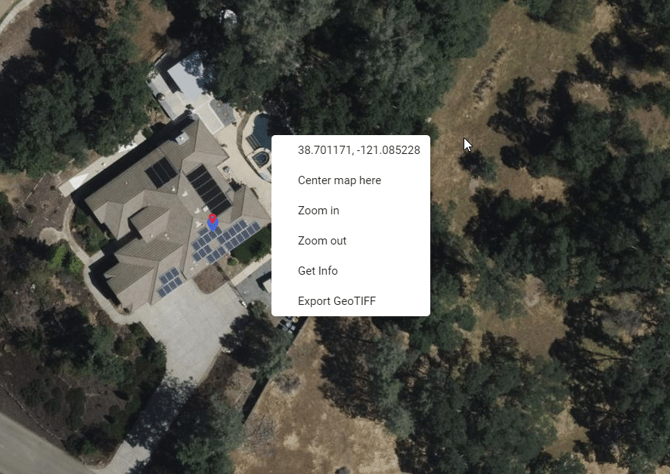
Right-clicking anywhere on the map opens a small menu. Here you can copy the latitude and
longitude for that location, re-center the map to that location, zoom in or out, open the Property
and Location Information tool to get info for that location, or open the Export GeoTIFF tool.
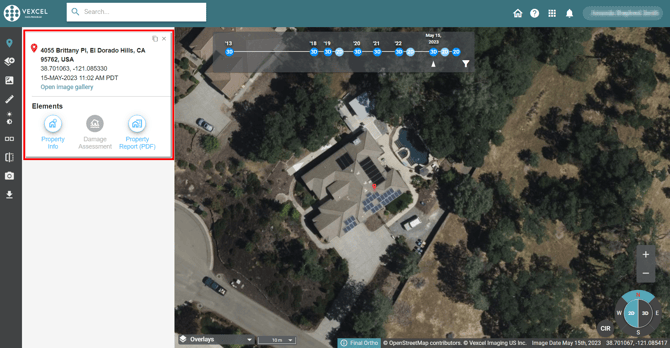
Right click > Get Info opens the property and location information tool and shows information
for the location. The information box displays:
- The location’s address
- The latitude and longitude for the location, in decimal degrees
- The date and time when the image was captured, if imagery is available in that location. The time is given in the time zone of the image’s location, not your own.
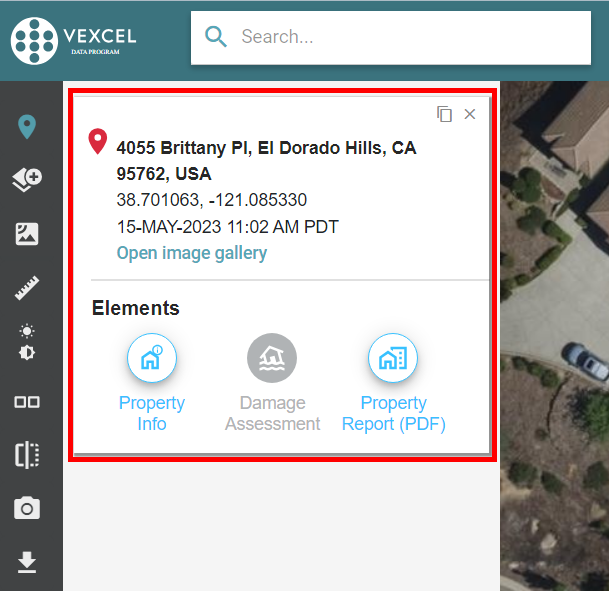
There is also an option to Open image gallery. For documentation regarding this feature, please
refer to the Image Gallery section.
There is also a section for Elements property information. For documentation regarding
Elements, please refer to the Elements section.
Most tools and functions in the Viewer have hover-over messages that appear when you
hover your mouse above the button. These are useful for understanding what a tool does
or understanding the status of a tool that might be unavailable for a certain reason.